Configure and connect integrations
Every integration follows the same pattern: configure credentials → connect → verify status.
1. Open Integrations
Open Toby.app → Settings → Integrations. The catalog groups Integrations (first-party plugins) and MCP servers, each with connection status.
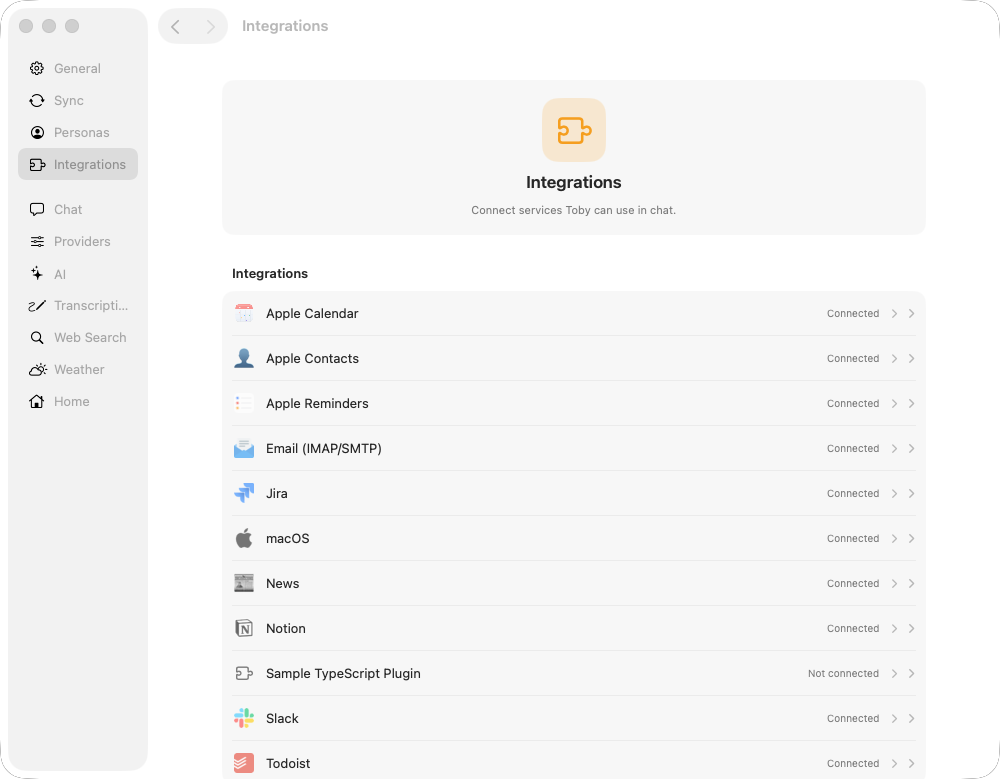
Click any integration to open its detail page, where you can fill in credentials, run a setup guide, connect, and check status. Use Add new MCP server at the bottom of the MCP list to attach any Model Context Protocol server (stdio, HTTP, or SSE) — see MCP servers.
2. Configure credentials
Choose a service in Settings → Integrations and fill in the fields on its detail page (API keys, OAuth client IDs, and so on). Each integration detail has a Setup Guide button that walks you through provider steps, shows copyable values like redirect URIs and scopes, and lets you fill credentials and connect without leaving the app.
Example: Email
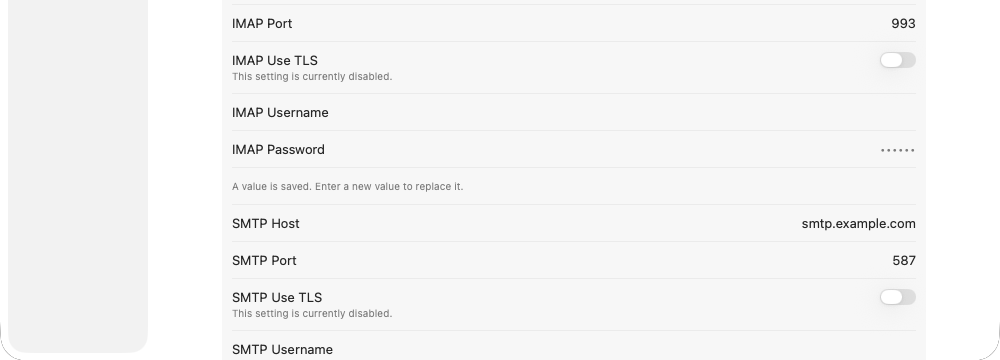
Enter your IMAP and SMTP host, port, username, and password. Click Setup Guide for a step-by-step wizard.
Example: Apple Calendar
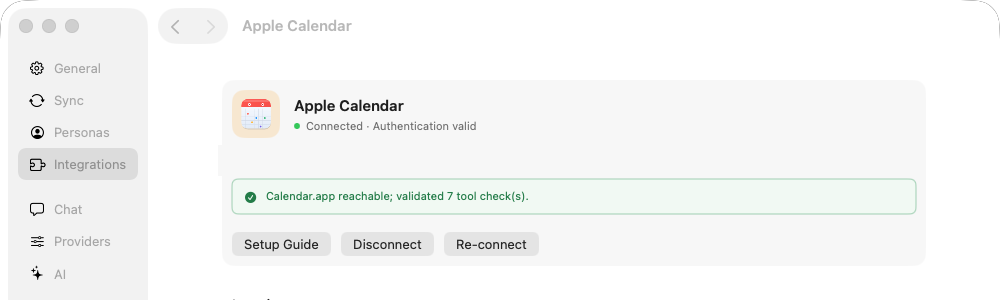
Apple Calendar needs no credentials — just click Connect and grant Calendar permission to Toby.app in System Settings when prompted.
Credentials live in ~/.toby/credentials.json (encrypted on macOS; Keychain holds the key). Connection flags live in ~/.toby/config.json.
3. Connect
Click Connect on the integration detail page. Toby validates credentials and marks the integration connected.
OAuth integrations (for example Slack) open a browser or local callback during connect. API-key integrations validate credentials and connect immediately.
4. Check status
Return to Settings → Integrations to see connection status at a glance. Each integration shows whether it is connected and healthy.
Disconnect
Open the integration in Settings → Integrations and click Disconnect. This clears Toby's connection flag — it does not delete your mail, tasks, or calendar data at the provider.
Integration guides
| Integration | Guide |
|---|---|
| Todoist | Todoist |
| Slack | Slack |
| Apple Calendar (macOS) | Apple Calendar |
| Apple Reminders (macOS) | Apple Reminders |
| Apple Contacts (macOS) | Apple Contacts |
| macOS system controls | macOS |
| Jira | Jira |
| Notion | Notion |
Web Search and Weather are built-in settings, not integrations. See Web Search and Weather.