Projects
Projects give Toby a durable workspace for a specific body of work. A project has its own folder, instructions, project chats, generated outputs, optional persona, and project-local skills so related work stays together across sessions.
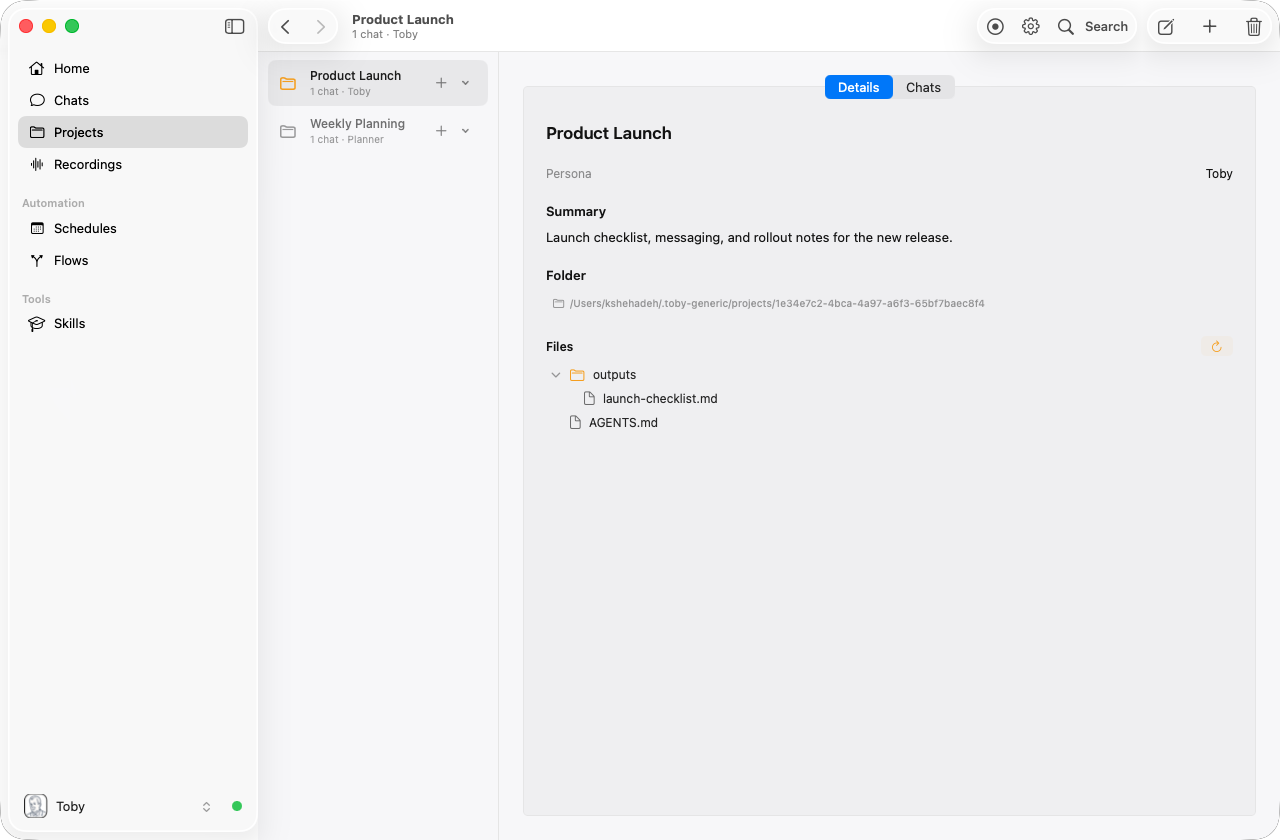
What a project is
A project is a record in Toby's local session database backed by a folder under ~/.toby/projects/. New projects use a stable project id for the folder name, and Toby.app exposes the exact path from the project page.
~/.toby/projects/<project-id>/
  AGENTS.md          # project instructions read by project chats
  .agent/skills/     # project-local skills (includes project-organization)
  outputs/           # generated artifacts
When you work inside a project, Toby uses the project metadata and folder contents to keep the chat grounded:
- Project guidance —
AGENTS.mdis included as project-specific instruction, along with workspace rules that apply no matter which persona is active: work in this folder, keep it organized, and look in the project first. - Project-local skills — every
SKILL.mdunder.agent/skills/is available for that project. New projects include a project-organization skill that records the folder layout so later chats follow it. - Output scoping — generated files land in the project's
outputs/folder by default. - Project chat grouping — project chats belong to the project. Start a new chat from a row’s +, open the chevron for recent chats, or use the project page.
- Content-first answers — when you ask a question, Toby searches and reads files in the project folder before relying on general knowledge or the web.
This makes projects ideal for recurring workflows like weekly overviews, monthly reports, or any task where you want the AI to produce consistent output informed by the same reference material each time.
Create a project
In Toby.app, open Projects from the sidebar and click + in the toolbar (shown when no project is selected), or use Create Project on the empty Projects page. A New Project sheet opens; Save creates the project folder and selects it. Cancel discards the draft without creating anything.
Project workspace
Open Projects in the sidebar to see every project in a list. Click one to open its project page.
The Projects area has a sidebar list and a main page:
| Area | What it does |
|---|---|
| Project sidebar | Lists each project by name, with chat count and persona underneath. Select a project to open it. Each row has a + split control: click + to start a new chat for that project, or open the chevron for its ten most recently updated chats (and New Chat). Right-click a project for the same recent chats, New Chat, and delete. Press ⌘N while a project is selected to start a new project chat. Click empty space in the list, or Projects again, to clear the selection. |
| No selection | Shown when nothing is selected. The detail pane asks you to select a project or create a new one. The toolbar + opens a New Project sheet. |
| Project page | The selected project's details: Details and Chats tabs. Details is read-only: name, persona, full summary, folder path, and file tree. Use toolbar Edit to change name, persona, or summary (Save persists, Cancel discards). On Chats, click a chat to resume it, or use + Chat in the toolbar to start a new one. The toolbar also shows Delete. |
| Project chat | Opens in the main area when you start or resume a project chat. Project chats never appear in the Chats sidebar or the main Chats view — open them from the project. New chats show New “Project Name” Chat with a project folder and the active persona. A Files sidebar opens on the right and refreshes as the chat creates, updates, or deletes files. Changed files are briefly labeled, including recently deleted files. Use the toolbar Files button to hide or show it. The toolbar also shows a folder icon and a Back to Project button; the project stays highlighted in the sidebar. Select the project or use that button to return to its Chats tab. |
The project persona is optional. When set, new project chats use that persona by default, which is useful when a project always needs a specific voice or role.
Add project instructions
Every project starts with an AGENTS.md file:
~/.toby/projects/<project-id>/AGENTS.md
Use this file for durable guidance that should apply to all project chats: goals, conventions, customer context, output formats, or source-of-truth links. New projects start with a short reminder that Toby should work in this folder, keep it organized, and search project files first.
Add project-local skills
Skills placed in the project's .agent/skills/ directory are loaded automatically whenever that project is active:
~/.toby/projects/<project-id>/.agent/skills/
  project-organization/SKILL.md
  weekly-update-format/SKILL.md
Ask Toby to create a skill while working in a project, or add a SKILL.md manually. Project-local skills are best for instructions that should not apply globally.
New projects also get a project-organization skill. Toby keeps that skill up to date as it creates folders and files, so the next chat in the same project uses the same layout.
Global skills under ~/.toby/skills/ still work normally. Use project-local skills when the behavior belongs only to one project.
Browse project files
The project page shows the project file tree. Use it to confirm that generated outputs and skills landed in the right place. The Folder field on the project page reveals the project folder in Finder. Click a file in the tree to preview it with Quick Look; if Quick Look cannot show the file, Toby opens it with the default app. Right-click a file to Quick Look, open it, or reveal it in Finder.
Generated files are written to:
~/.toby/projects/<project-id>/outputs/
When no project is active, generated files fall back to ~/.toby/generated-files/.
Save an attached file to a project
In a project chat, use the + button to attach a file, then explicitly ask
Toby to save it to the project, for example: “Save this brief to the project.”
Toby stores the original file in the project's attachments folder. This also
works for files your selected AI model cannot read. Toby will not replace a file
with the same name unless you explicitly ask it to overwrite the existing file.
Organize, move, rename, or delete project files
In a project chat, Toby works in the project folder. It inspects the tree, searches file contents when you ask questions, and tries to keep the folder organized from the project description (or a sensible default if you have not written one). That layout is saved in the project's project-organization skill so the next chat continues the same way.
You can still ask Toby to write a file, create or delete folders, move or rename a file, or
delete a file already in the project. For example: “Save this to research/notes.md,” “Create a references/designs
folder,” “Move attachments/brief.pdf to
references/designs/final-brief.pdf,” “Delete outputs/old-report.md,” or
“Delete the archive folder.”
Ask Toby to read a project file or PDF (for example “Summarize
attachments/brief.pdf” or “What did we decide in research/notes.md?”) and
it searches and reads the project first.
Toby uses paths inside the project folder and will not replace an existing destination file unless you ask it to overwrite that file. Deletions still require an explicit request. Deleting a folder permanently removes everything inside it, and Toby will not delete the project root.
When Toby writes a file in chat, the reply includes a download chip. Download saves a copy to your Downloads folder and reveals it in Finder; Open opens the original with its default app. You can also Save As… or Reveal in Finder from the chip’s context menu.
Use projects with schedules
Schedules can be associated with a project. When a scheduled prompt runs with a project selected, Toby uses that project's guidance and writes generated artifacts to the project workspace.
This is useful for recurring reports, weekly reviews, customer updates, and other repeated workflows that should keep the same context over time.
Legacy context folders
Older Toby project folders may contain a context/ directory or project.json. Toby migrates legacy projects into the current project database and keeps the old paths available for compatibility, but new project guidance should go in AGENTS.md and project-local skills should go under .agent/skills/.
Example: weekly overview project
# 1. Create the project
Toby.app → Projects → + → rename to "Weekly Updates"

# 2. Add durable guidance
Open the project folder from the project page and edit AGENTS.md.

# 3. Create a skill for consistent formatting
"Create a skill called weekly-overview-format that formats a weekly status
 update with sections: Accomplishments, Blockers, Priorities Next Week.
 Write it in a concise bullet-point style."

# 4. Keep the skill project-local
Save the skill under .agent/skills/weekly-overview-format/SKILL.md.

# 5. Generate each week
"Generate this week's overview based on my recent emails and tasks"
→ output lands in the project's outputs/ folder.
Over time, the outputs/ folder accumulates each weekly overview, all produced with the same style and project instructions.
Projects vs chat history
| Chat session | Project | |
|---|---|---|
| Stores | Conversation transcript | Instructions, skills, and generated artifacts |
| Primary location | ~/.toby/chat.sqlite | ~/.toby/projects/<project-id>/ |
| Lifespan | Per session | Until you delete the project |
| AI access | Prior messages | Project guidance and project-local skills |