Schedules
Schedules are recurring jobs that run on a cron timetable. Each schedule runs either a prompt (with a persona) or a saved flow—for example, a daily inbox summary every morning at 9:00.
Schedule definitions are stored in ~/.toby/chat.sqlite alongside chat sessions. While Toby is running, a background service checks which schedules are due and runs them.
What a schedule includes
| Field | Description |
|---|---|
| Name | Label you recognize in the list |
| When it runs | Prompt (chat) or Flow (named pipeline) |
| Prompt | What Toby should do when the schedule fires (prompt mode) |
| Flow | Which saved flow to run (flow mode) |
| Persona | Which persona to use in prompt mode (defaults often to Toby) |
| Cron expression | When to run (standard five-field cron) |
| Enabled | Whether the schedule is active |
Example cron: 0 9 * * * — every day at 9:00 AM (server local time).
Add a schedule
Schedules window
Open Toby.app and click Schedules in the sidebar.
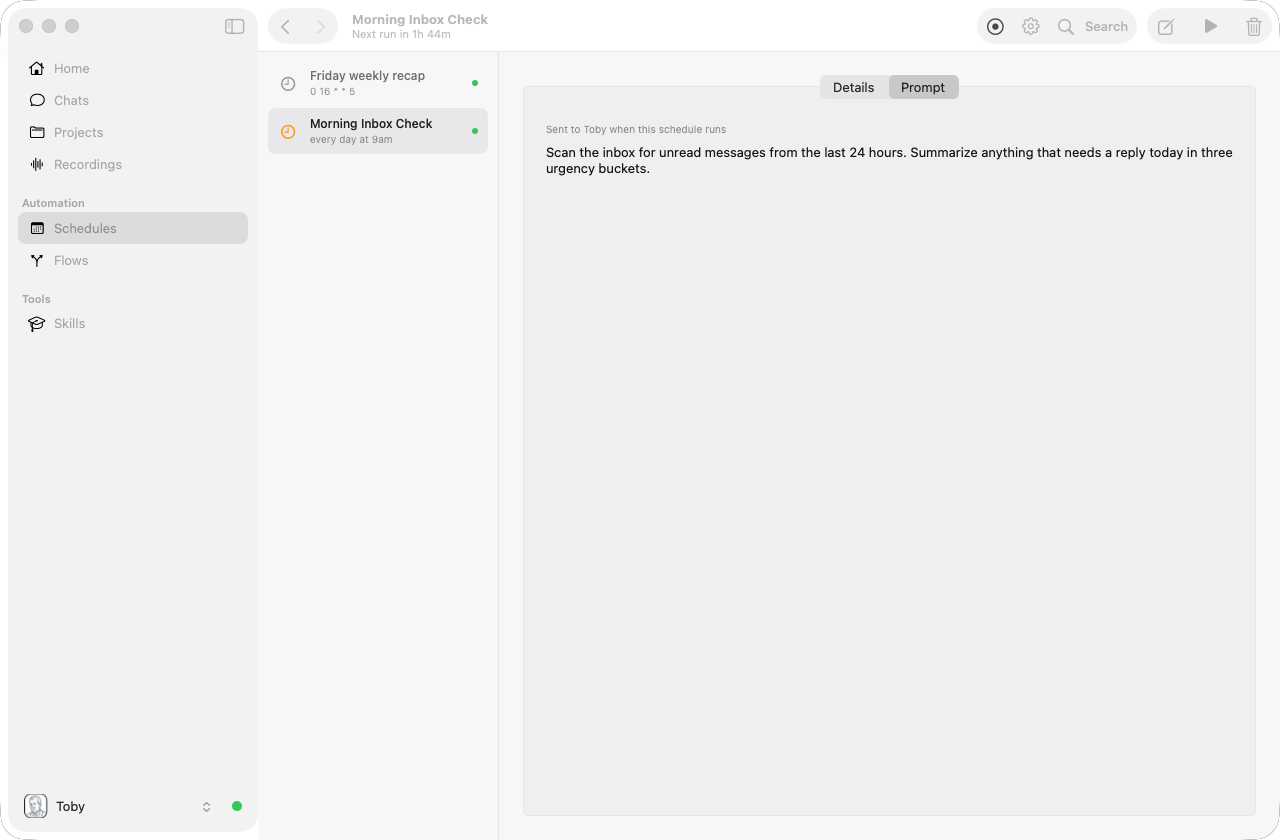
The Schedules view lists your schedules in a second column. Select one to open its page, or click empty space in the list (or Schedules in the sidebar again) to clear the selection. The schedule page has Details and Prompt tabs. Details shows name, enabled state, when it runs, persona or flow, timetable, and recent runs. Prompt shows the prompt body, or a summary of the selected flow. Use toolbar Edit to change those fields in a sheet (Save persists, Cancel discards). Use + in the toolbar, or the create link when nothing is selected, to open a New Schedule sheet (nothing is created until you Save). You can also delete schedules from a row’s context menu or the toolbar, use Run now for a test, and view past runs.
From chat
Type /schedules to open the same manager without leaving chat.
How schedules run automatically
Scheduled prompts only fire while Toby’s local background service is running. Toby.app starts that service when you launch the app, so keeping Toby open (or letting it run in the background) is enough for schedules to fire.
If something seems stuck:
- Quit and reopen Toby.app, or
- In chat, type
/restart-serverto restart the local service
The service polls on an interval (default about 60 seconds) for due schedules.
Manual run
In the Schedules window, select a schedule and choose Run now to execute immediately without waiting for cron.
Example schedule
Name: Morning inbox brief
Prompt: Summarize unread email from the last 24 hours and list items needing a reply today.
Persona: Toby
Cron: 0 9 * * *
Enabled: Yes
After connecting Email and leaving Toby running, you get a daily brief at 9am.
Tips
- Connect the integrations your prompt or flow needs (Email, Todoist, etc.) before relying on a schedule.
- Use a persona whose instructions match the job (brief vs detailed), or let the flow pick its own persona.
- In flow mode, email and Slack destinations on the flow still send; a “show result” window does not pop up when the daemon runs.
- Test with Run now before enabling an aggressive cron.
Related
- Personas
- Integrations
- Flows — tool + persona pipelines you can also run on a schedule
- Examples